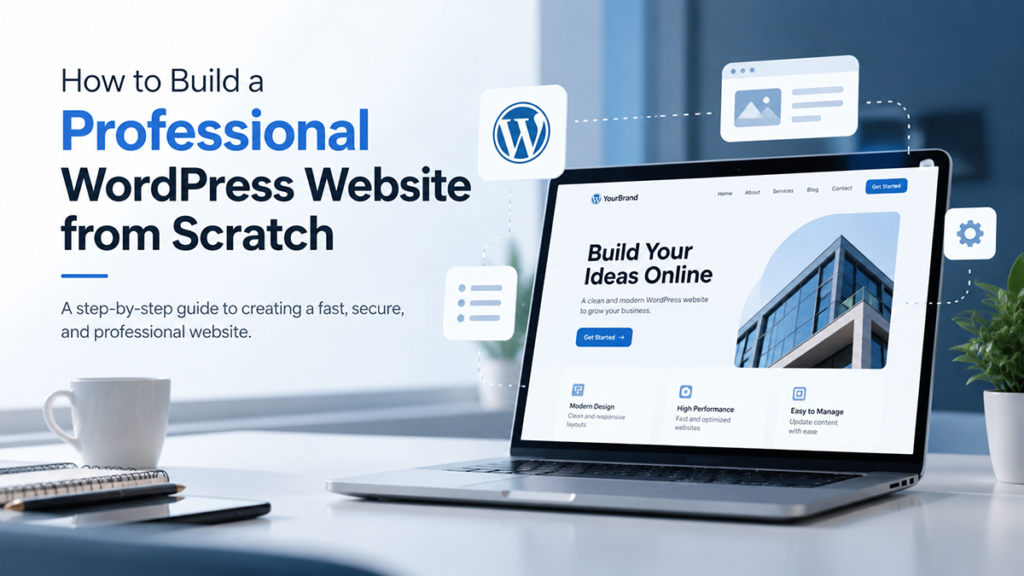
Building a professional website no longer requires advanced coding skills or a large development budget. With WordPress, individuals, entrepreneurs, and businesses can create modern, responsive, and functional websites using flexible themes, visual editing tools, and a wide range of extensions.
However, creating a successful website involves more than installing WordPress and choosing an attractive design. A professional website should be fast, secure, mobile-friendly, easy to navigate, and structured to achieve a clear purpose.
Whether you’re building a company website, personal portfolio, blog, news portal, or online store, this step-by-step guide explains how to create a professional WordPress website from scratch in 2026.
Step 1: Define Your Website’s Purpose
Before purchasing a domain or installing WordPress, identify exactly what your website needs to accomplish.
Different websites require different structures, features, and content strategies.
For example:
- Business Website: Introduce services, establish credibility, and generate inquiries.
- eCommerce Website: Display products, accept payments, and manage orders.
- Portfolio Website: Showcase professional skills, projects, and experience.
- Blog: Publish informative articles and attract an interested audience.
- News Portal: Organize articles, categories, authors, and breaking news.
- Directory Website: Help visitors discover businesses, services, or locations.
Consider your target audience, the actions visitors should take, and the information they need before contacting you or making a purchase.
A website built around clear user goals will usually be easier to navigate and maintain than one designed without a plan.
Step 2: Choose a Domain Name and Reliable Hosting
Your domain name is your website’s online address, such as yourbusiness.com.
Choose a domain that is easy to remember, relevant to your business, and simple to type.
Tips for Choosing a Domain
- Keep it short and memorable.
- Avoid unnecessary hyphens and numbers.
- Choose a suitable extension, such as
.com,.org, or a relevant country-specific domain. - Check whether your preferred name conflicts with existing trademarks.
- Register the domain through a reputable provider.
How to Choose WordPress Hosting
Hosting determines where your website’s files, database, and content are stored.
A reliable hosting provider should offer:
- Good server performance and uptime.
- SSL certificates and HTTPS support.
- Modern PHP and database versions.
- Automatic backups or reliable backup options.
- Security monitoring and technical support.
- Sufficient resources for expected visitor traffic.
According to the current official WordPress recommendations, hosting should support PHP 8.3 or later, MySQL 8.0 or later or MariaDB 10.11 or later, and HTTPS.
Managed WordPress hosting may be convenient for beginners, while VPS hosting can provide greater control for websites with more demanding requirements.
Avoid choosing a hosting plan based on price alone. Performance, security, backup capabilities, and support quality are equally important.
Step 3: Install WordPress
Once your domain and hosting are ready, the next step is installing WordPress.
Most modern hosting providers include a one-click WordPress installer in their control panel.
Installing WordPress Through a Hosting Panel
- Sign in to your hosting account.
- Open the website or hosting management panel.
- Find the WordPress installation option.
- Select your domain.
- Enter your website title.
- Create an administrator username and a strong password.
- Complete the installation.
After installation, you can usually access the WordPress dashboard at:
The WordPress dashboard allows you to manage pages, posts, themes, plugins, users, and website settings.
Security Tip: Avoid using predictable administrator usernames and enable two-factor authentication when possible.
Step 4: Configure Essential WordPress Settings
Before designing your website, review the most important WordPress settings.
These settings affect search visibility, usability, and content management.
General Settings
Navigate to Settings → General.
Configure:
- Website title.
- Tagline.
- Administration email address.
- Time zone.
- Date and time formats.
Use the correct time zone for your primary business operations or publishing schedule.
Permalink Settings
Go to Settings → Permalinks.
For many content-driven websites, the Post name structure is a practical choice.
For example:
yourdomain.com/website-design-tips/
Readable URLs are easier to share and understand.
If you’re modifying an existing website, be careful when changing permalinks because doing so can break existing links unless redirects are configured.
Reading Settings
Navigate to Settings → Reading.
Choose whether your homepage should display:
- Your latest posts.
- A static page designed as your homepage.
For a professional business website, a custom static homepage is usually the more suitable option.
Before launching, verify that the setting discouraging search engines from indexing the site is disabled.
Step 5: Select the Right WordPress Theme
Your WordPress theme controls much of your website’s appearance and layout.
A well-developed theme should provide a consistent design without unnecessarily compromising performance or functionality.
What to Look for in a WordPress Theme
Responsive Design: The website should adapt properly to mobile phones, tablets, and desktop screens.
Performance: The theme should avoid unnecessary scripts and excessive visual effects.
Customization: You should be able to adjust colors, typography, layouts, and other essential design elements.
Compatibility: Check compatibility with your WordPress version and required plugins.
Accessibility: Navigation, buttons, forms, and text should be usable by people with different accessibility needs.
Maintenance: Prefer themes with documented updates and reliable developer support.
Block Themes vs Classic Themes
WordPress supports both block themes and classic themes.
Block Themes work with the WordPress Site Editor, allowing users to customize headers, footers, templates, navigation, and global styles through blocks.
Classic Themes generally rely on PHP templates, the Customizer, traditional menus, or theme-specific settings.
Neither approach is automatically the best choice for every website.
A block theme can be a convenient option for a new website that prioritizes native WordPress editing. A classic theme may be appropriate when a particular layout, plugin, or development workflow requires it.
Choose the approach that best fits your technical requirements and long-term maintenance needs.
Step 6: Design a Professional Homepage
Your homepage is often the first meaningful interaction visitors have with your business.
It should communicate what you offer, who you serve, and what users should do next.
Essential Homepage Sections
1. Header and Navigation
Include your logo, a clear navigation menu, and easy access to important pages.
2. Hero Section
Use a concise headline that explains your website’s primary purpose.
Add a short supporting description and a clear call to action.
3. Services or Main Features
Present your primary services, products, or information categories.
4. Benefits or Value Proposition
Explain what makes your offering useful to your target audience.
5. Trust Signals
Where relevant, include genuine customer feedback, project examples, qualifications, or verifiable business information.
6. Contact or Next Step
Provide a straightforward way to contact your business, request information, or explore relevant content.
7. Footer
Include contact details, useful navigation links, and relevant legal information.
Keep the Design Consistent
Use a limited color palette, readable typography, predictable spacing, and consistent button styles.
Avoid filling every section with animations, oversized images, or unnecessary decorative elements.
Professional design depends more on clarity and usability than visual complexity.
Step 7: Create the Essential Website Pages
A professional website needs more than an attractive homepage.
The exact pages depend on the website’s purpose, but most business websites benefit from the following:
| Page | Purpose |
|---|---|
| Home | Introduces the website and guides visitors |
| About Us | Explains the business or organization |
| Services | Describes available services |
| Portfolio | Showcases completed projects |
| Blog | Provides educational content and updates |
| Contact | Helps visitors communicate with you |
| Privacy Policy | Explains relevant data collection and processing |
Online stores may also need Shop, Cart, Checkout, My Account, Refund Policy, and Terms and Conditions pages.
Create these pages through Pages → Add New in the WordPress dashboard.
Focus on original, informative content rather than filling pages with generic marketing statements.
Step 8: Install Only the Plugins You Need
Plugins extend WordPress functionality.
Depending on your website, you may need tools for SEO, backups, caching, security, contact forms, analytics, or eCommerce.
However, installing too many overlapping plugins can create unnecessary maintenance work and increase the potential for performance or compatibility problems.
Common Plugin Categories
| Category | Function |
|---|---|
| SEO | Manage search appearance and technical SEO settings |
| Security | Add protection and monitoring features |
| Backup | Create recoverable copies of website data |
| Caching | Improve content delivery and reduce server workload |
| Forms | Collect inquiries and submissions |
| Analytics | Measure website visits and user interactions |
| eCommerce | Manage products, orders, and payments |
Before installing any plugin, check its update history, compatibility, support documentation, and reputation.
Avoid installing multiple plugins that perform exactly the same task unless there is a clear technical reason.
Important: Never install untrusted or modified premium plugin files from unknown sources. They can introduce security vulnerabilities or malicious code.
Step 9: Make Your Website Mobile-Friendly
A professional website must work well across different screen sizes.
Visitors should be able to read content, navigate menus, complete forms, and interact with buttons without excessive zooming or horizontal scrolling.
Mobile Optimization Checklist
- Use responsive layouts.
- Keep navigation simple.
- Ensure buttons are easy to tap.
- Avoid oversized images.
- Use readable font sizes.
- Check forms and checkout pages on smaller screens.
- Avoid intrusive pop-ups.
- Test both portrait and landscape layouts when relevant.
Do not assume that a responsive theme guarantees a perfect mobile experience.
Always test the actual website after adding content, plugins, and custom design elements.
Step 10: Optimize Website Speed and Performance
Website performance influences user experience and can affect business outcomes.
A slow website may frustrate visitors, especially on mobile networks or devices with limited resources.
Practical WordPress Performance Tips
Optimize Images
Resize images to appropriate dimensions and use modern formats such as WebP or AVIF when supported.
Enable Caching
Use a caching solution compatible with your hosting environment.
Reduce Unnecessary Plugins
Remove unused plugins and avoid loading unnecessary functionality.
Use Efficient Hosting
A well-configured server can significantly improve performance.
Limit Heavy Scripts
Avoid loading excessive animations, tracking scripts, fonts, or third-party widgets.
Consider a CDN
A content delivery network may improve asset delivery for visitors across different geographic locations.
Understand Core Web Vitals
Google’s Core Web Vitals measure important aspects of real-world user experience.
The three primary metrics are:
- Largest Contentful Paint (LCP): How quickly the main content becomes visible.
- Interaction to Next Paint (INP): How responsive a page is to user interactions.
- Cumulative Layout Shift (CLS): How visually stable the page remains while loading.
Use Google PageSpeed Insights and Search Console to identify performance problems.
Focus on meaningful improvements rather than chasing a perfect laboratory score.
Step 11: Set Up Basic WordPress SEO
Search engine optimization helps search engines discover, understand, and present your website’s content.
SEO should begin during website development, not after publishing dozens of pages.
Essential SEO Practices
Write Clear Page Titles
Each important page should have a descriptive, distinctive title.
Use Logical Headings
Organize content with a clear main heading and meaningful subheadings.
Create Useful Content
Write original information that directly addresses visitors’ needs.
Optimize Images
Use descriptive filenames and meaningful alternative text when images convey information.
Build Internal Links
Connect related pages and articles so visitors can easily find additional information.
Keep URLs Readable
Use descriptive slugs and avoid unnecessary URL parameters where possible.
Check Indexing Settings
Ensure important public pages are not accidentally blocked from indexing.
Connect Google Search Console
Google Search Console can help website owners monitor indexing, search performance, and technical issues.
After verifying ownership, inspect important URLs and submit your XML sitemap if appropriate.
WordPress includes core XML sitemap functionality, typically available at:
https://yourdomain.com/wp-sitemap.xml
SEO plugins may provide an alternative sitemap.
Submitting a sitemap helps search engines discover URLs, but it does not guarantee indexing or search rankings.
Step 12: Secure Your WordPress Website
Security should be part of website development from the beginning.
WordPress websites can be targeted through outdated software, stolen credentials, vulnerable plugins, and poorly configured servers.
Essential Security Measures
- Use strong, unique passwords.
- Enable two-factor authentication for administrator accounts.
- Keep WordPress core, themes, and plugins updated.
- Use HTTPS throughout the website.
- Remove unused themes and plugins.
- Restrict administrator access to trusted users.
- Use reputable security monitoring tools.
- Maintain regular, tested backups.
When possible, test major updates on a staging website before applying them to production.
Remember that no security plugin can guarantee complete protection.
A layered approach combining secure hosting, updates, account protection, monitoring, and backups is more reliable.
Step 13: Set Up Backups and Website Monitoring
A backup strategy protects your website against accidental changes, technical failures, and security incidents.
A complete WordPress backup should include both website files and the database.
Recommended Backup Practices
Automate Backups: Schedule backups according to how frequently your website changes.
Use Off-Site Storage: Keep at least one backup outside the hosting account.
Retain Multiple Restore Points: Do not rely on a single recent backup.
Test Restoration: Confirm that backups can actually restore the website.
Monitor Availability: Use uptime monitoring to detect unexpected outages.
For a frequently updated online store or news website, backups may need to run more often than for a simple portfolio site.
Step 14: Test Everything Before Launching
Before making your website publicly available, carry out a complete functional review.
Test the website as a visitor, not just as an administrator.
Pre-Launch Checklist
- All pages display correctly.
- Navigation menus work.
- Contact forms deliver messages.
- Mobile and tablet layouts are usable.
- Images load correctly.
- Important internal links work.
- HTTPS is enabled.
- Search indexing settings are correct.
- SEO titles and descriptions are configured.
- Backups are working.
- Analytics and Search Console are connected where needed.
- Privacy and legal pages are reviewed.
- Sample content and unnecessary plugins are removed.
For WooCommerce websites, additionally test product selection, cart calculations, checkout, payment methods, order confirmation emails, and order management.
Where possible, test on multiple browsers and real mobile devices.
Step 15: Launch and Maintain Your Website
Once testing is complete, your WordPress website is ready to launch.
However, publishing the website is only the beginning.
A professional website requires continuous maintenance to remain useful, secure, and technically reliable.
A Simple Maintenance Schedule
Weekly
- Check important forms and website functionality.
- Review backups and security alerts.
- Update content where necessary.
Monthly
- Review available WordPress and plugin updates.
- Check website speed.
- Inspect Search Console for indexing issues.
- Fix broken links.
- Review analytics and user behavior.
Quarterly
- Evaluate website design and usability.
- Review outdated pages and content.
- Remove unnecessary functionality.
- Test backup restoration.
- Review hosting performance and resource usage.
Regular maintenance helps prevent minor problems from becoming expensive technical issues.
Common WordPress Website Mistakes to Avoid
Even a visually appealing website can perform poorly if its technical foundation is weak.
Some common mistakes include:
- Choosing unreliable hosting solely because it is inexpensive.
- Installing excessive plugins without reviewing their necessity.
- Ignoring mobile design during development.
- Using oversized images and heavy visual effects.
- Publishing copied or low-quality content.
- Launching without proper backups.
- Neglecting software updates.
- Overlooking website accessibility.
- Failing to test forms, payments, and navigation.
- Treating SEO as an afterthought.
Avoiding these mistakes can reduce maintenance problems and create a better experience for visitors.
Frequently Asked Questions
1. Can I build a professional WordPress website without coding?
Yes. WordPress offers visual content editing, customizable themes, and site-building tools that allow beginners to create many types of websites without writing code. Complex functionality or highly customized designs may still require development skills.
2. Is WordPress free to use?
The self-hosted WordPress software available from WordPress.org is free and open source. However, domain registration, hosting, premium themes, plugins, and professional services may involve additional costs.
3. How long does it take to build a WordPress website?
A basic website may take a few days to plan, build, and test. More complex websites involving custom designs, eCommerce, integrations, or content migration can take several weeks or longer.
4. Is WordPress suitable for business websites?
Yes. WordPress can support business websites, portfolios, blogs, directories, news portals, and online stores. Its suitability depends on the project’s requirements, hosting environment, and maintenance plan.
5. Do I need a premium WordPress theme?
Not necessarily. A well-maintained free theme may be sufficient for many websites. Premium themes can provide additional templates, customization controls, or support, but price alone does not determine quality.
6. How do I make my WordPress website appear on Google?
Create helpful content, use descriptive titles, ensure important pages can be crawled and indexed, and verify your website in Google Search Console. Search visibility takes time, and no plugin or configuration can guarantee rankings.
7. How often should I update WordPress?
Review updates regularly and apply security fixes promptly after evaluating compatibility. Back up the website before major updates and use staging when practical.
Final Thoughts
Building a professional WordPress website in 2026 is not simply about selecting a beautiful theme or installing popular plugins.
The most successful websites combine clear goals, reliable hosting, thoughtful design, useful content, strong security, and consistent maintenance.
Start with a well-planned structure, prioritize visitors’ needs, and add features only when they provide genuine value.
With the right foundation and an ongoing commitment to improvement, WordPress can support a professional online presence that grows alongside your business or project.